Help Centre
Signing in
With your email and password
On the welcome screen, enter the email address and password you signed up with and tap Sign In.
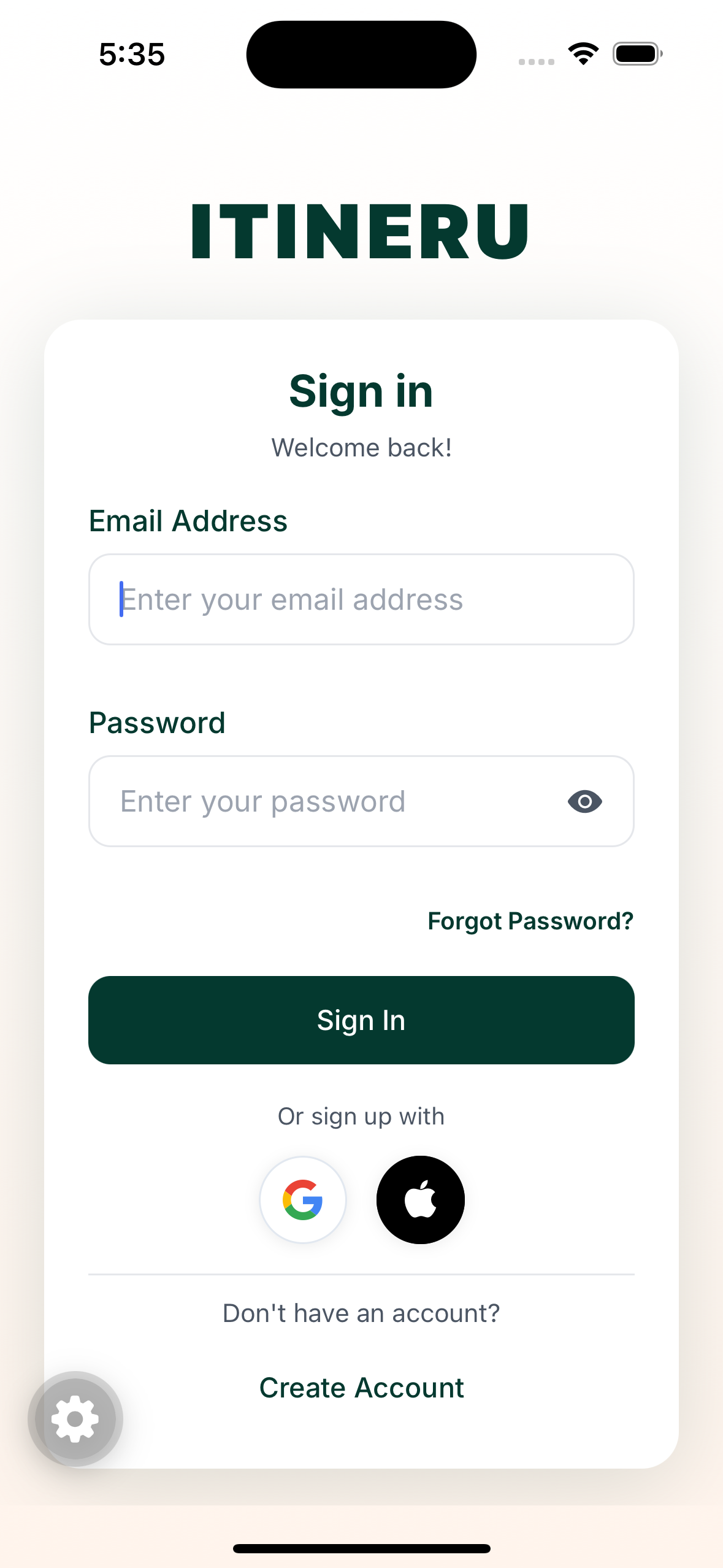
Forgotten the password? See Resetting your password.
With Apple
Tap Sign in with Apple. Your device confirms it is you, with Face ID, Touch ID, or your device passcode, and you are in. Sign in with Apple is available on iPhones and iPads.
With Google
Tap Sign in with Google and choose your Google account in the window that opens. When it closes, you are back in Itineru and signed in.
"This email is already registered with a password"
If you try Apple or Google and see this message, it means the same email address already has an Itineru account that uses a password. Sign in with that email and password once, and Itineru connects your Apple or Google account to it automatically. From then on, any of them works.
Signed in on a new phone
Just sign in the same way you did before. Your itineraries, trips, saved places, expenses and Atlas all live in your account, not on the phone, so everything is there waiting.
Staying signed in
Itineru keeps you signed in until you sign out. To sign out, go to the Profile tab and tap Sign Out.
Trouble signing in
- Wrong password. Use Resetting your password.
- Cannot remember which way you signed up. Try Sign in with Apple or Sign in with Google first; if the email matches, Itineru will tell you what to do. Otherwise use the password reset, which works for any email account.
- Still stuck. Contact support at support@itineru.app and we will sort it out.