Help Centre
Resetting your password
The short version
Itineru resets passwords with a 6-digit code sent to your email. There is no link to click; you type the code into the app, then choose a new password.
Step by step
- On the sign-in screen, tap Forgot Password?
- Enter the email address on your account and tap Send Reset Link.
- Check your email for a message with a 6-digit code.
- Type the code into the app.
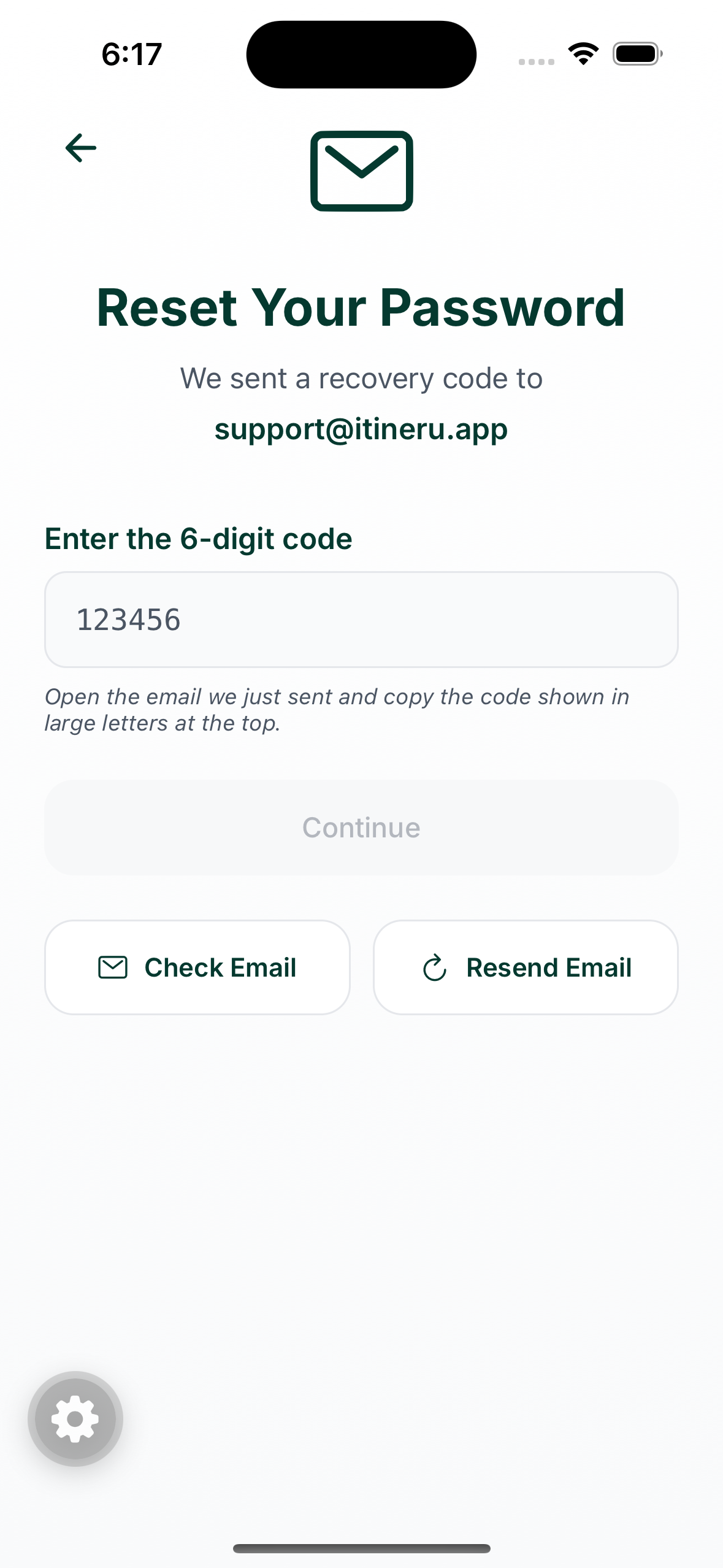
- Choose a new password and enter it twice. It needs to be at least 8 characters.
- Done. Sign in with the new password.
The email has not arrived
- Check your spam or junk folder.
- On the code screen, tap Resend. You can ask for a fresh code once a minute. Each new code replaces the previous one, so always use the newest email.
- Make sure you entered the email address your account was created with. For your security, Itineru shows the same confirmation whether or not an account exists for the address you typed, so a mistyped address looks exactly like a slow email.
"Invalid or expired code"
Codes are single-use and only last a short while. Tap Resend for a fresh one, and make sure you are copying the code from the most recent email.
Changing your password while signed in
There is no separate change-password setting in the app. Use the same reset flow: sign out from the Profile tab, tap Forgot Password? on the sign-in screen, and follow the steps above.
If you signed up with Apple or Google
There is no Itineru password to reset. Just tap Sign in with Apple or Sign in with Google as usual. See Signing in.
Still locked out
Email support@itineru.app from the address on your account and we will help.